

MrJones Login
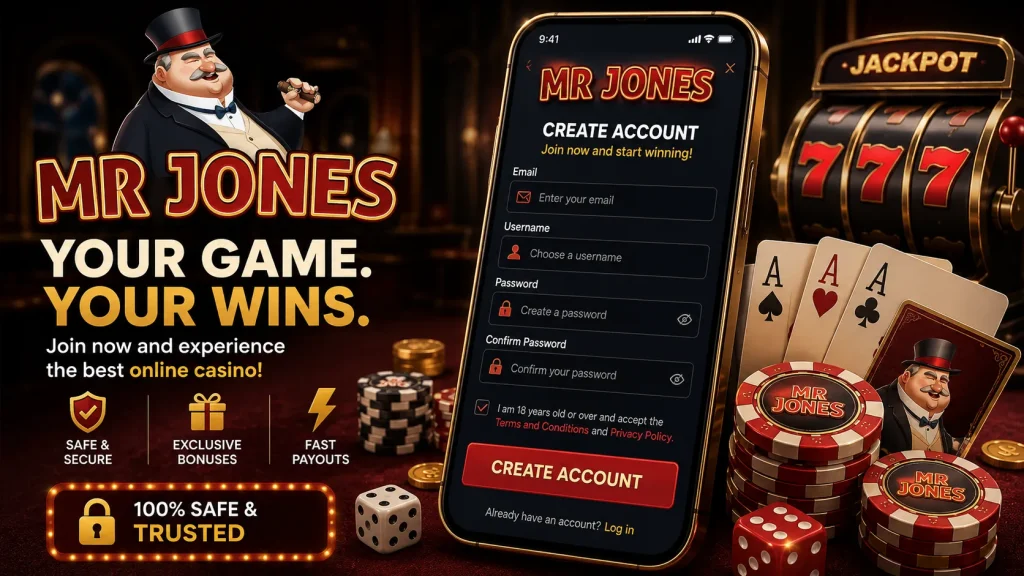
Most of our players sign in from their phone, usually somewhere between the sofa and the bus stop, which is exactly why we built the MrJones app around speed and security rather than fiddly forms. If you’ve been typing your password on a cramped keyboard every time you want to check your balance or place a bet, there’s a much quicker way. This page walks you through MrJones login on the app with biometrics, the equivalent process on desktop, and what to do when something doesn’t go to plan.
Signing In Through the MrJones App
The MrJones app login is designed to get you from tap to table in a few seconds. Once installed, open the app, tap Sign In, and enter your registered email or username along with your password the first time round. From there, you can switch on biometric login so you never need to type that password again on your phone. The process is quick, but it’s worth doing it properly the first time so your device remembers you securely rather than just conveniently.
- Open the MrJones app and tap the sign in button on the home screen.
- Enter your registered email address and password.
- When prompted, allow the app to enable Face ID, fingerprint, or your device’s biometric option.
- Choose whether to stay logged in on this device if it’s private and not shared.
- Confirm, and you’ll land straight on your account dashboard.
Turning On Face ID or Fingerprint Login
Once you’re signed in on the app, go to your account settings and look for the security or login section. Toggle on biometric sign in and your phone will ask you to confirm using whatever method it supports, Face ID on most iPhones, fingerprint on the majority of Android devices. After that, every MrJones sign in on that phone can be done with a glance or a touch rather than a password. If biometrics suddenly stop recognising you, it’s usually because your phone’s operating system update reset permissions, or the app itself needs updating from the App Store or Google Play. Re-enabling the toggle in settings almost always fixes it, and if not, a fresh password entry followed by re-enabling biometrics resolves the rest.
Stay Logged In and One-Tap Access
On a device only you use, the stay logged in option means opening the app is genuinely one tap, no password, no biometric prompt even, just straight to your dashboard. We only recommend this on personal phones with their own lock screen protection. Shared tablets or borrowed phones shouldn’t have this switched on, since anyone unlocking the device could potentially reach your account. If you ever sell, lose, or replace your phone, sign out remotely from the web version first or contact us so we can end that session and remove trusted device status before the new owner gets any ideas.
Why Mobile Login Is Actually Very Secure
Speed and security aren’t opposites in our case, they work together. Biometric login is device-bound, meaning your fingerprint or face data never leaves your phone or gets sent to us, it simply unlocks a secure token stored locally. If someone signs in to your MrJones account from an unrecognised device or unusual location, we send a new-device alert to your registered email so you know immediately if it wasn’t you. We’d also encourage switching on two-factor authentication using an authenticator app rather than SMS codes, since SIM-swap fraud has made text messages the weaker option industry-wide. An authenticator app generates codes offline, which is harder for anyone to intercept even if they’ve got your phone number.
Signing In on the Web
The desktop and mobile browser route mirrors the app closely. Head to the MrJones homepage, click Sign In at the top of the page, and enter your email or username with your password. There’s a remember me checkbox that keeps you logged in on that particular browser, similar in spirit to the app’s stay logged in feature, though it doesn’t use biometrics since most laptops and desktops aren’t set up for that. Web sign in tends to suit players who prefer a bigger screen for checking statements, downloading transaction histories, or reading through terms in full rather than squinting at a phone. If you’re on a public or work computer, skip remember me entirely and sign out properly once you’re done.
Common Mobile Login Problems and Fixes
Phones introduce a few quirks that desktops don’t, mostly around connectivity, permissions, and app versions. Below are the issues we see most often from UK players trying to reach their account on the move.
| Issue | Fix |
|---|---|
| Biometrics not recognising you | Re-enable Face ID or fingerprint in app settings; update the app if it’s out of date |
| App feels stuck or won’t load past splash screen | Check for a pending update in your app store, then restart the app |
| Autofill entering an old password | Clear the saved entry in your phone’s password manager and retype manually once |
| Switching from Wi-Fi to mobile data mid-session | Sign in again if you’re logged out; this is a network handover, not an account issue |
| VPN or unusual location flag | Turn off the VPN and sign in from your normal network to avoid location mismatches |
| Account pending verification | Complete any outstanding ID checks in your account settings |
| Too many failed attempts | Wait for the temporary lock to clear, then reset your password if unsure |
If none of these apply and the MrJones login still won’t go through, it’s rarely something wrong on your end specifically, more often a temporary hiccup on our side or an app version that’s a step behind. Updating the app and restarting your phone resolves the majority of remaining cases.
Resetting a Forgotten Password From Your Phone
Forgetting your password doesn’t need to derail your session. Tap forgotten password on the sign in screen, enter your registered email, and we’ll send a reset link within a few minutes. If it hasn’t arrived, check your spam or promotions folder before assuming it’s lost, mail providers on mobile sometimes file these oddly. The link is time-limited for security reasons, so if you’ve left it sitting in your inbox for a while and it’s expired, simply request a new one rather than trying to force the old link to work.
- Tap forgotten password and enter your registered email address.
- Open the reset email on your phone, checking spam if it’s not in your main inbox.
- Tap the link before it expires and set a new, unique password.
- Return to the app or site and sign in with your new credentials.
If the email address on file is outdated and you can no longer access it, don’t try to guess your way around it, contact our support team directly and they’ll verify your identity through other means before updating your details.
When Your Account Is Blocked or Under Review
Occasionally a MrJones sign in attempt returns a message that your account is under review rather than simply incorrect credentials. This is usually tied to routine identity verification, a mismatch between the payment method used and the name on the account, or an automated security flag triggered by logging in from a new country or device. None of these mean anything is permanently wrong, they’re standard checks any properly regulated UK operator carries out. The calm approach is to check your email for any request from us, upload whatever document has been asked for, and avoid submitting multiple duplicate applications, which can slow the review rather than speed it up.
Phishing Awareness and Keeping Your Account Safe
We will never ask you for your password or a two-factor code by email, live chat, or phone call, not ever, under any circumstance. If you receive a message claiming to be from Mr Jones asking you to confirm login details via a link, don’t tap it, go directly to the app or type our web address in manually instead. It’s also worth securing the email account linked to your MrJones login with its own strong password and two-factor authentication, since that inbox is effectively the master key to password resets. If you ever need help, our support team is available through live chat around the clock, and it’s genuinely quicker if you have your registered email or username ready, never your password, we won’t ask for it and neither should anyone else claiming to represent us.
Whether you’re reaching for the app between meetings or settling in on the laptop at home, Mr Jones login is built to be quick without cutting corners on security. Set up biometrics once, keep your linked email locked down, and the rest of your sessions should feel practically effortless.